Improve my prompt
Turn a rough research question into a stronger legal prompt, with a record of every change.
Select Improve my prompt below the message box. Bells Up rewrites your question into a clearer prompt and explains why the new version should get a better answer. You decide what goes into the final prompt. If your question is already specific enough, Bells Up says so and leaves it as written. You can still edit it with Edit my prompt or send it with Run my prompt.
How it works
The screens below follow a fictional employment matter.
- Start with your words. Type the question the way you would ask a colleague. A rough first draft is fine.
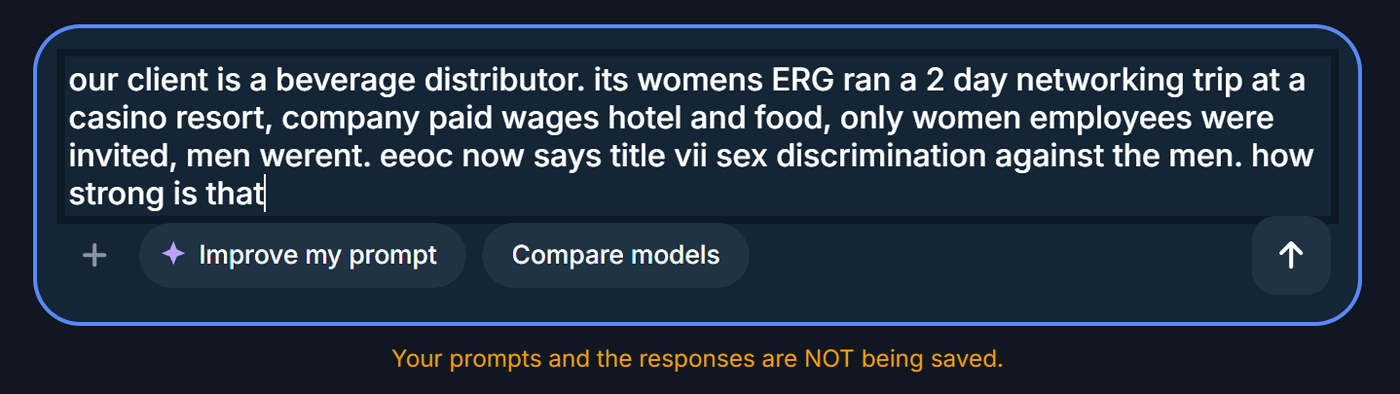
Type the question as it comes to you, then select Improve my prompt. 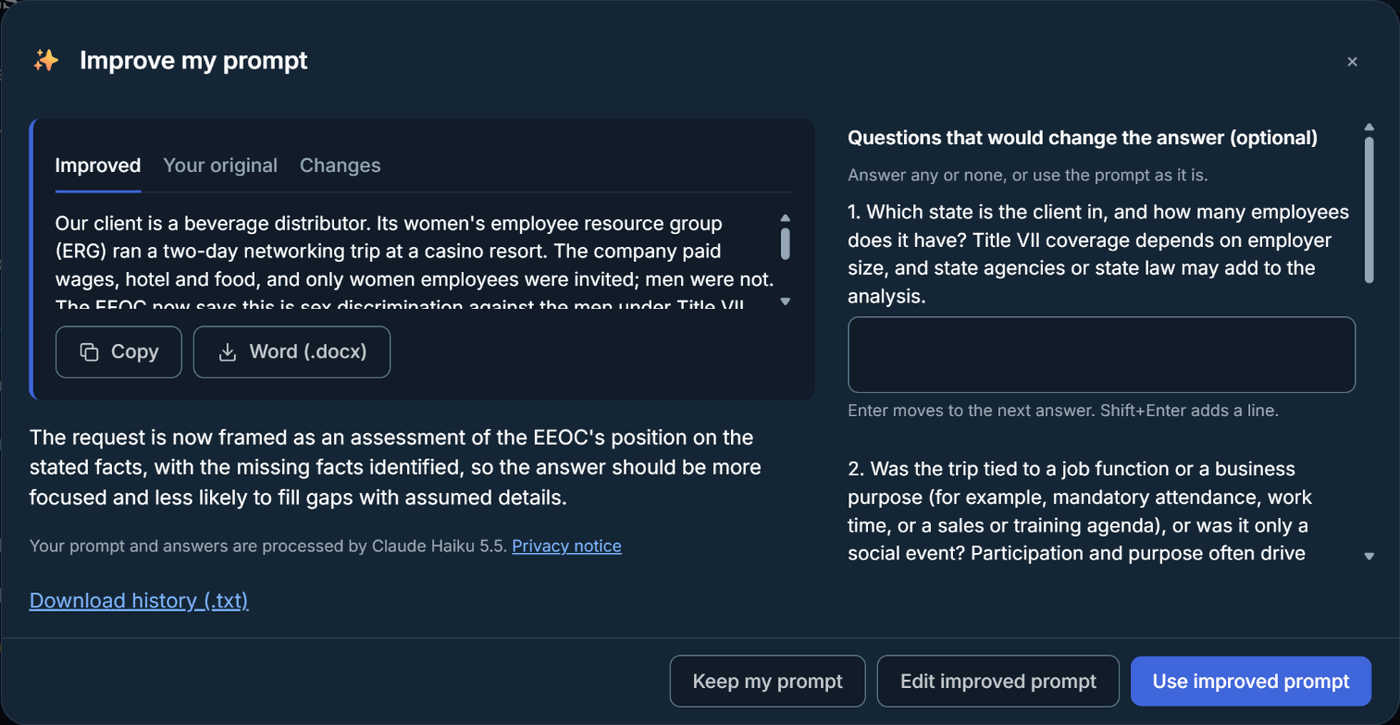
The improved prompt on the left, follow-up questions on the right. - Answer what you can. Follow-up questions point to facts that could change the analysis. Answer any of them, or none, and select Add. Bells Up rewrites the prompt with your answers, and new follow-up questions may appear.
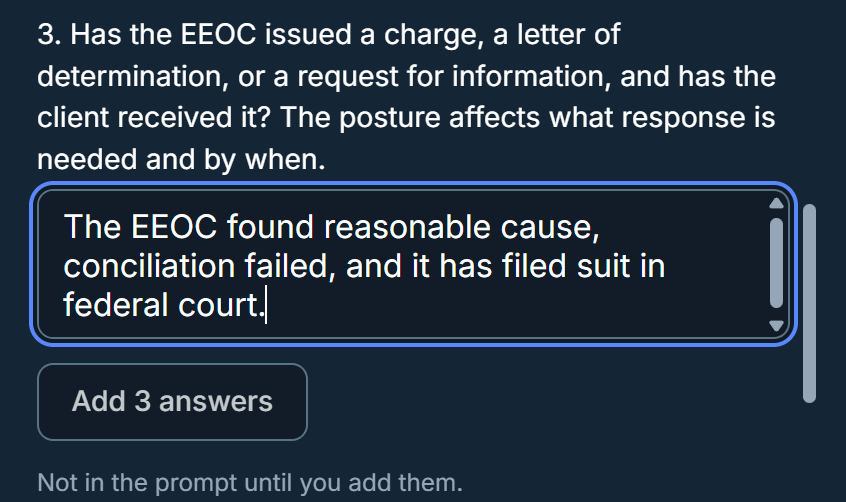
Answers stay out of the prompt until you select Add. - Consider the ideas. The Ideas to consider list names issues worth thinking about. Bells Up does not add them to your prompt. To include one, select Edit improved prompt and type it in.
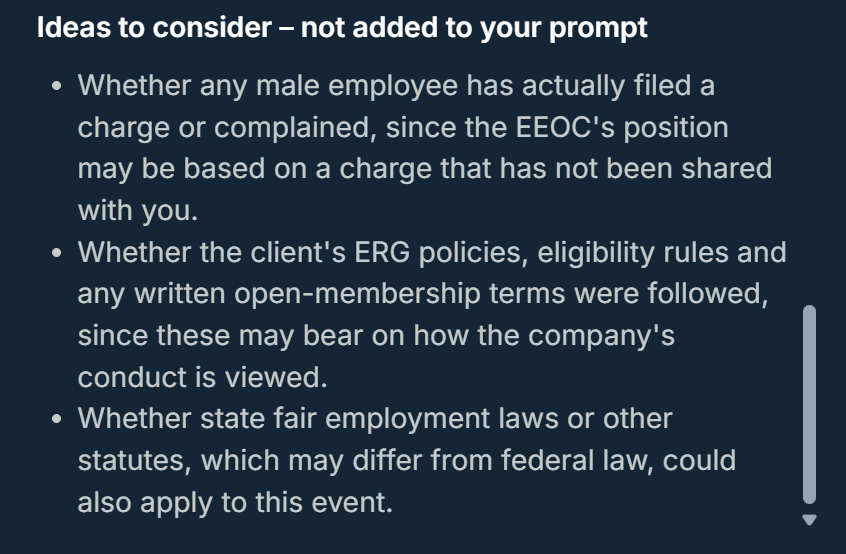
Ideas to consider are suggestions only. - See every change. The Changes tab shows a redline of what was added and removed. The Your original tab shows your question exactly as you wrote it.
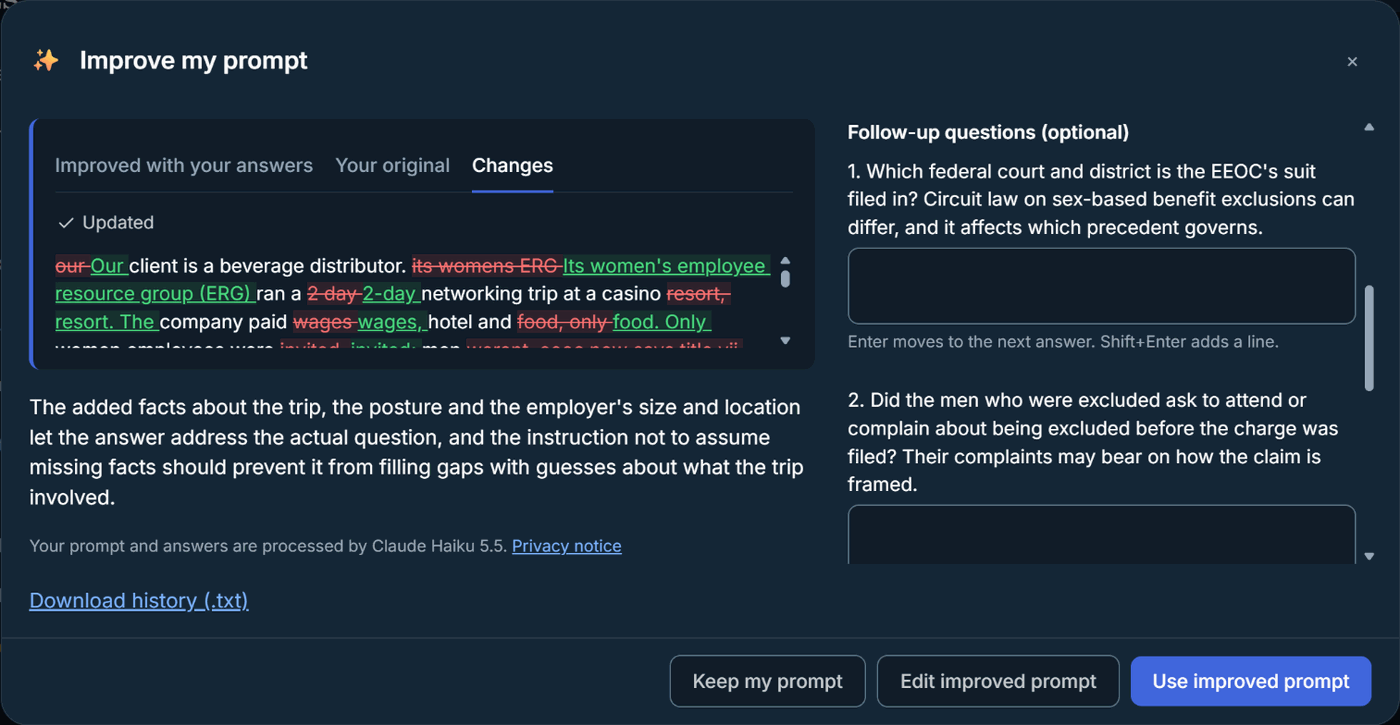
The Changes tab after adding answers. New follow-up questions appear on the right. - Choose the version to send. Select Use improved prompt, edit it first with Edit improved prompt, or select Keep my prompt to send your own. Compare both answers sends your original and the improved prompt to your current chat model and shows the two answers side by side, so you can continue with the one you prefer. It sends two messages, and both count toward your usage.
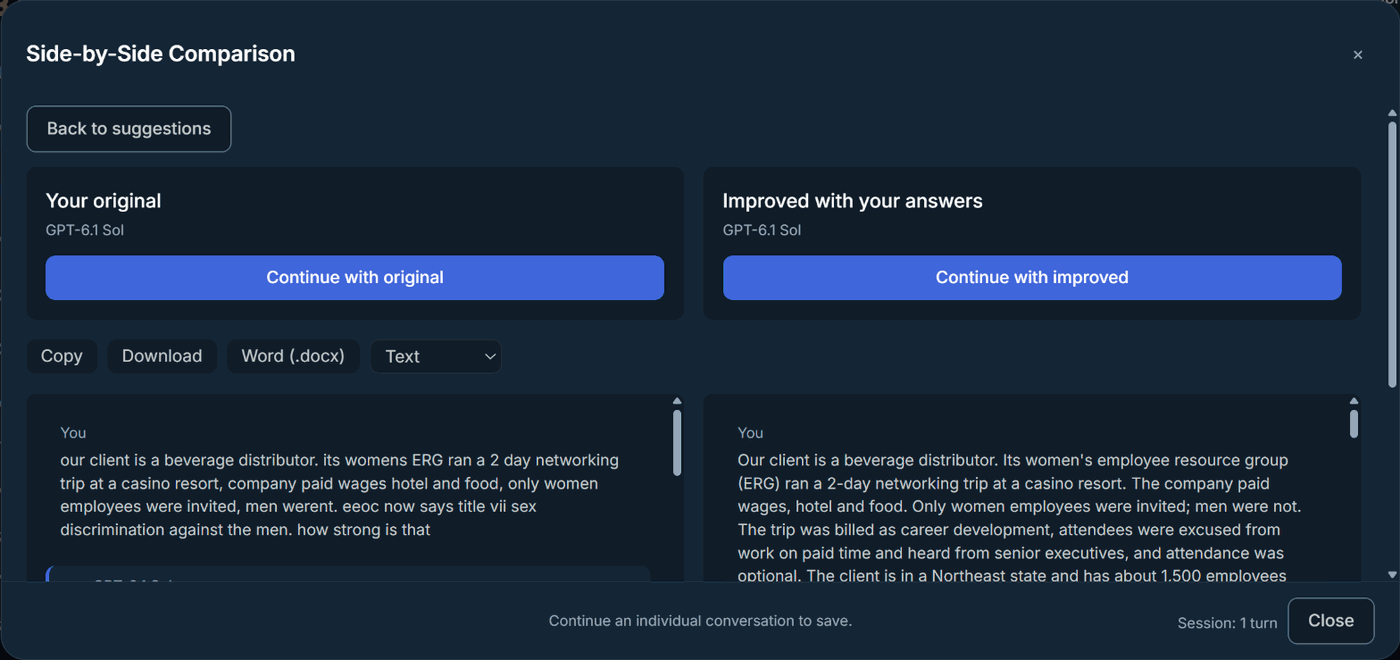
Compare both answers, then continue with the version you prefer.
Keep the record
Download history (.txt) saves a time-stamped record of how your prompt changed, from the question you submitted to the final version. Copy and Word (.docx) let you reuse the improved prompt elsewhere.
Where your draft goes
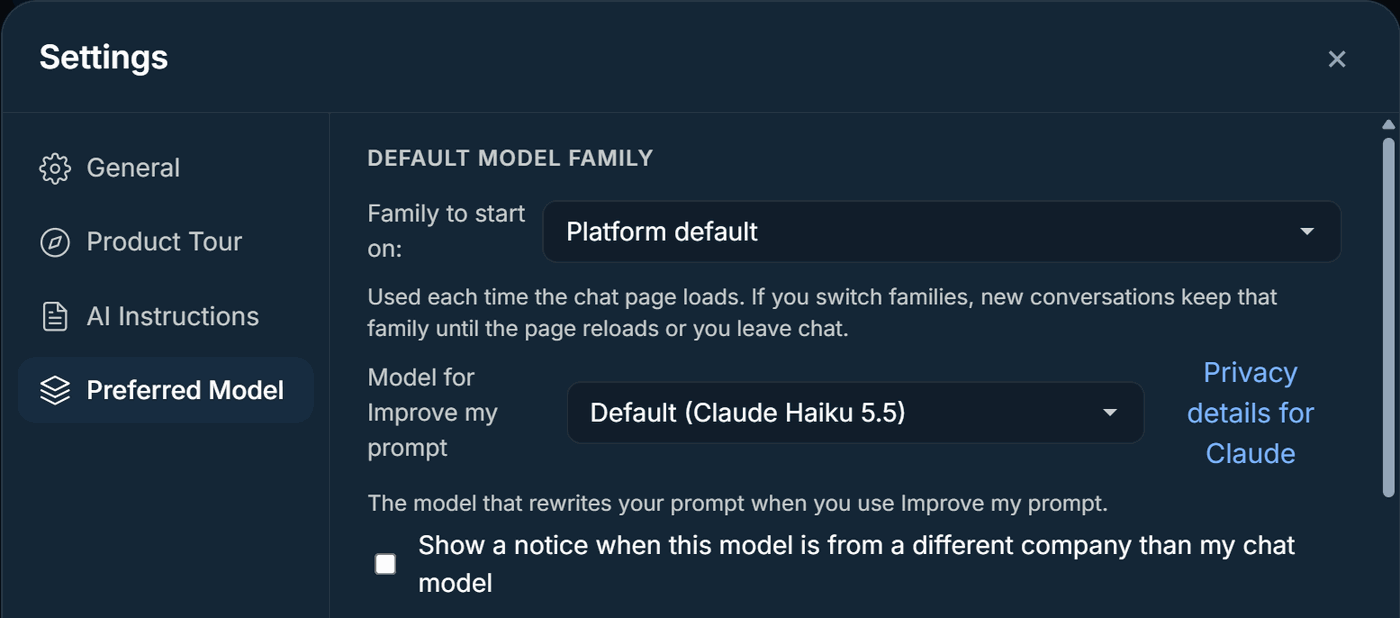
Improve my prompt always uses the model chosen in Settings under Preferred Model, in the Model for Improve my prompt setting, whichever model you chat with. The default is Claude from Anthropic. You can switch to an OpenAI model on any plan, or to a Google model on Professional. This setting changes only the model that rewrites your prompt. Your chat model stays the same.
The Improve my prompt window names the model processing your draft and links to its privacy notice. By default, Bells Up also shows a notice when that model comes from a different company than your chat model. You can turn the notice off in the same setting.
The same provider terms apply as in chat. Claude, the default, retains nothing once the response is returned. OpenAI and Google keep prompts for a limited period to monitor for abuse, under contracts that bar training on them. For the details, see Where your client’s information goes.