Your organization
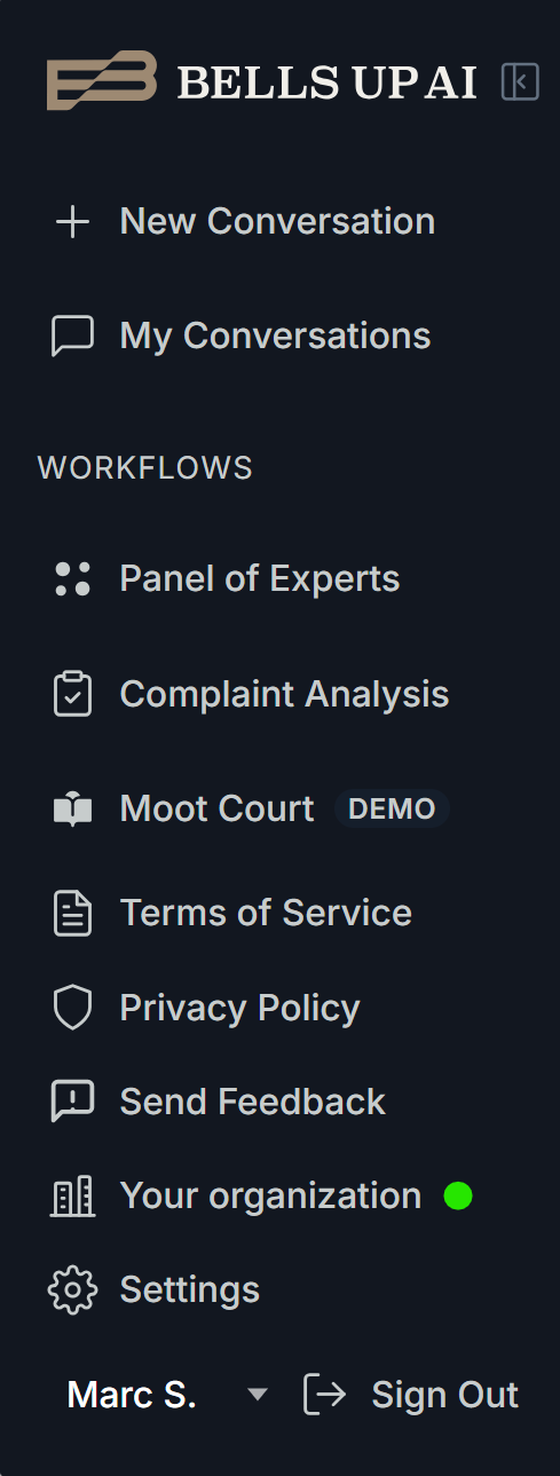
Your organization is where an account’s owner and admins manage their team, plan, model access, and account settings. You’ll find it in the left sidebar of the app — it’s visible only to owners and admins, so members won’t see it. It has four sections: Team, Plan & billing, Model visibility, and Account.
Team
The Team tab is where you manage your people and seats. You can invite new colleagues, track invitations that haven’t been accepted yet, and manage existing members — including deactivating a member or promoting one to admin.
Inviting your team
Open the Team tab and find Invite people. Enter each colleague’s name and email, using + Add another person to add more rows, then click Create invites. Everyone you invite joins as a member; you can make someone an admin later.
Each invite is sent by email, and you can also Copy link for any invite to share the private link yourself — handy if you’d rather send it your own way, or if the email doesn’t arrive. Pending invitations appear in a table showing each person’s status, when it was created, and when it expires, with actions to Resend invitation, Copy link, or Revoke.
Invitations expire after 14 days for security. If one lapses, just Resend it — Bells Up issues a fresh link and resets the 14-day clock. Signup happens in a single step, so there’s no partial progress to lose. Revoking an invitation invalidates its link immediately.
How seats work
Each active member and each pending invitation uses one seat, and your own account counts as a seat. A seat is reserved the moment you create an invite — not when it’s accepted.
A pending invite holds its seat until the invitation is accepted, expires, or is revoked. Revoking or letting an invite expire returns its seat to the pool right away, ready for a new invite; an accepted invitation converts to an active member and keeps its seat.
Plan & billing
The Plan & billing tab shows your current plan and, for card-billed accounts, a Manage payment & invoices button that opens the secure Stripe billing portal. Any referral credits on your account appear here as well.
Model visibility
The Model visibility tab lets owners and admins control which AI model families are available to everyone in the organization. You can show or hide entire families firm-wide, and optionally lock a choice so individual users can’t override it in their own settings. Model visibility is a paid-plan feature.
Account
The Account tab holds account-level settings, including the option to close your organization’s Bells Up AI account.